Select the item you want to be animated.
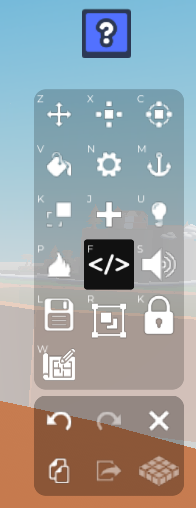
On the tools on the right-hand side, select the Code builder. Upon clicking the tool, a 'Properties' tab should open. Click on 'Code Builder' on the Properties tab, and name your script and object.
Select 'Events' on the left side of the builder to indicate when you want the object to start animating. To animate the object from the start of the game, select
At start. To have the object animate continuously throughout the game, select 'Control' on the left and insert thedo foreverblock.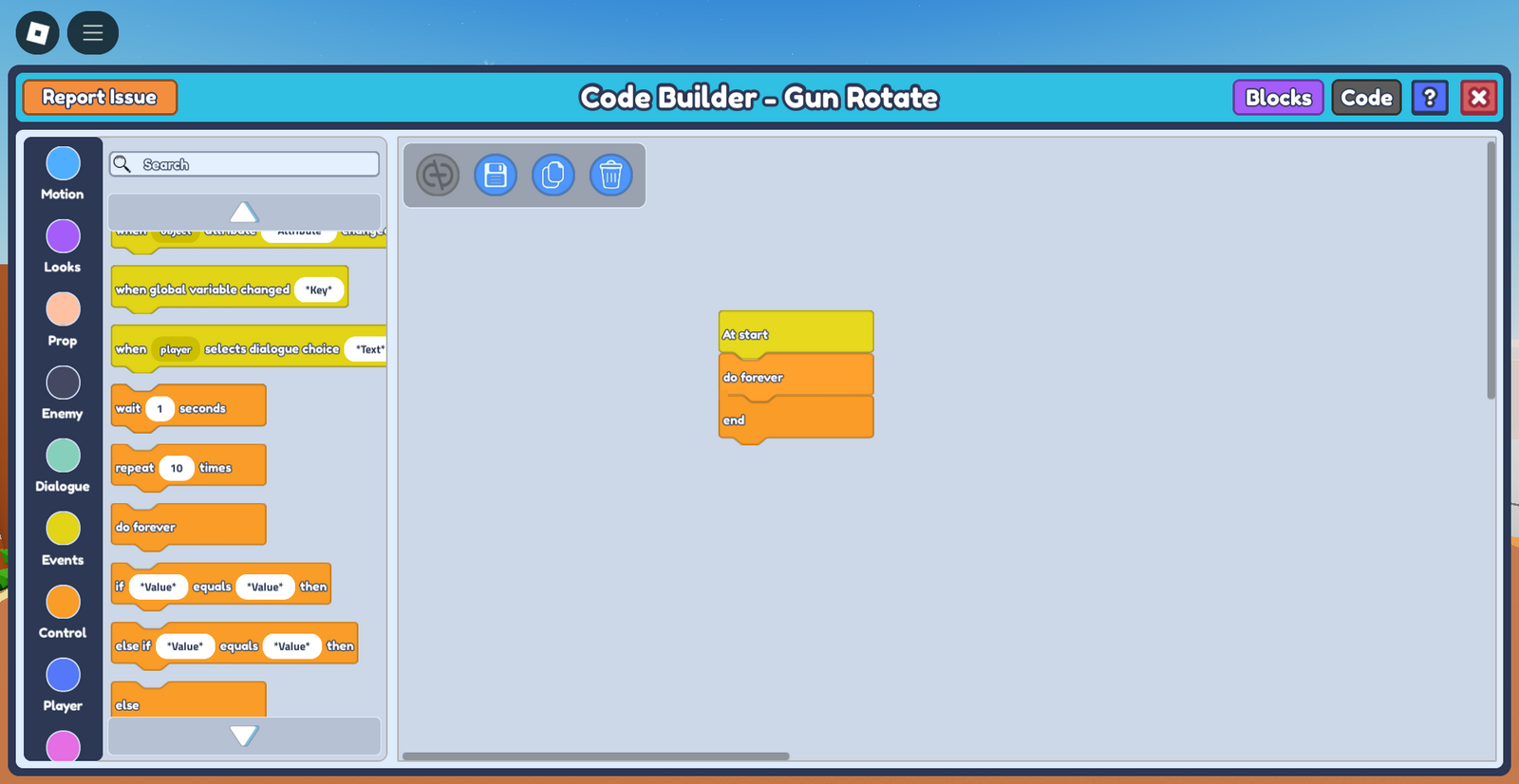
Select 'Motion' on the left side of the builder and add the
tween rotationblock. Make sure to change tween rotation from 'to' to 'by' to indicate the amount you wish to rotate. Write the amount (in degrees) you wish to rotate on the correct axis* and the time taken to rotate the object by that amount (for a slower rotation, input a small number for its rotation and a longer duration of time) .
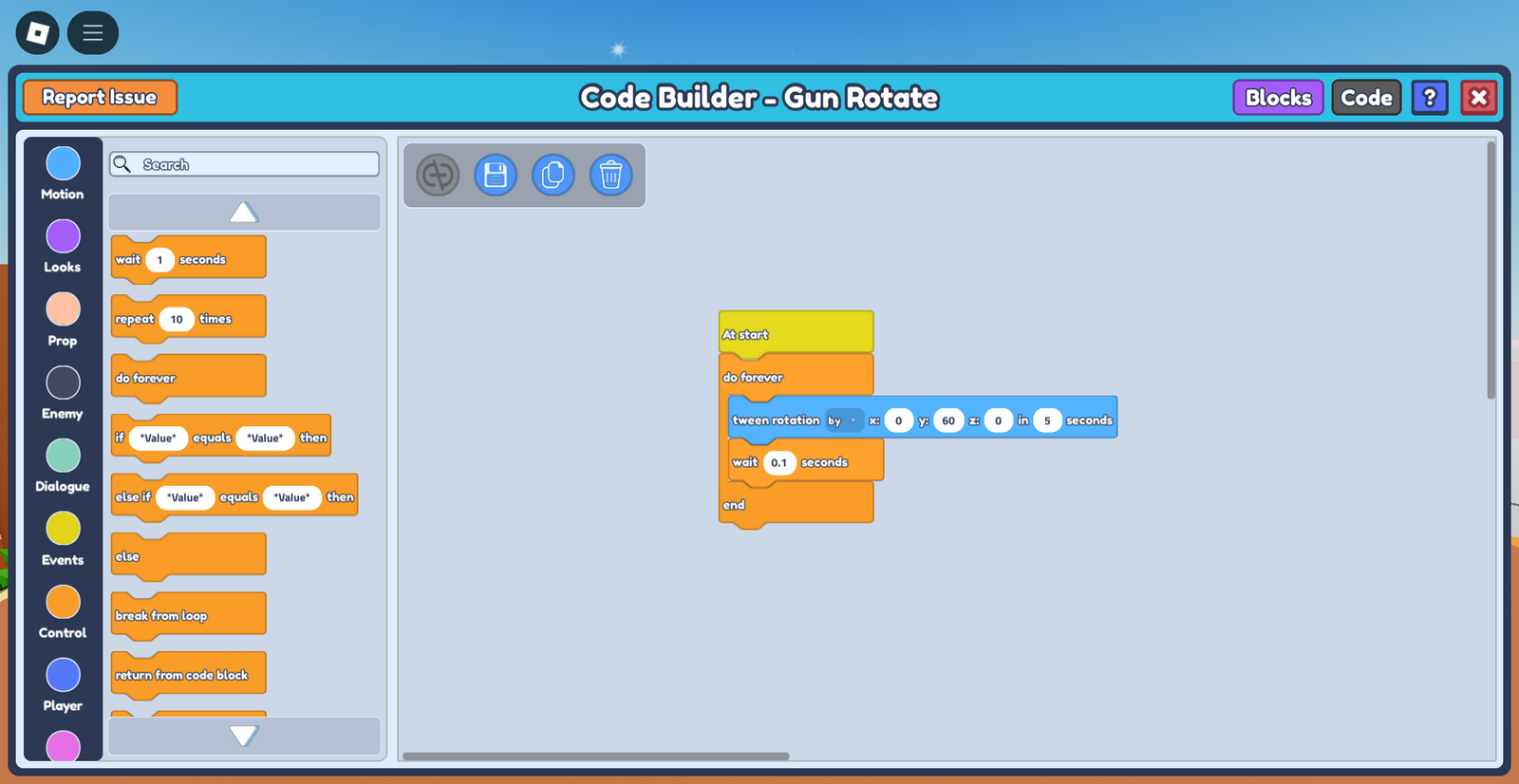
- Add a
wait - secondsblock from Control on the left to ensure the code runs smoothly. The **wait - seconds** block adds a small amount of delay before the rotation block runs again, which helps the code run continuously in a specific sequence to avoid overlapping. Make sure to input a small number (Any number below 5 seconds so the object keeps rotating, I used 0.1 in this case) so that the delay would not be noticeable and the animation flows smoothly.