Ever wanted to build an obby with parts that move back and forth? In this tutorial, we'll move an object back and forth with the help of the tweening animation block in Code Builder.
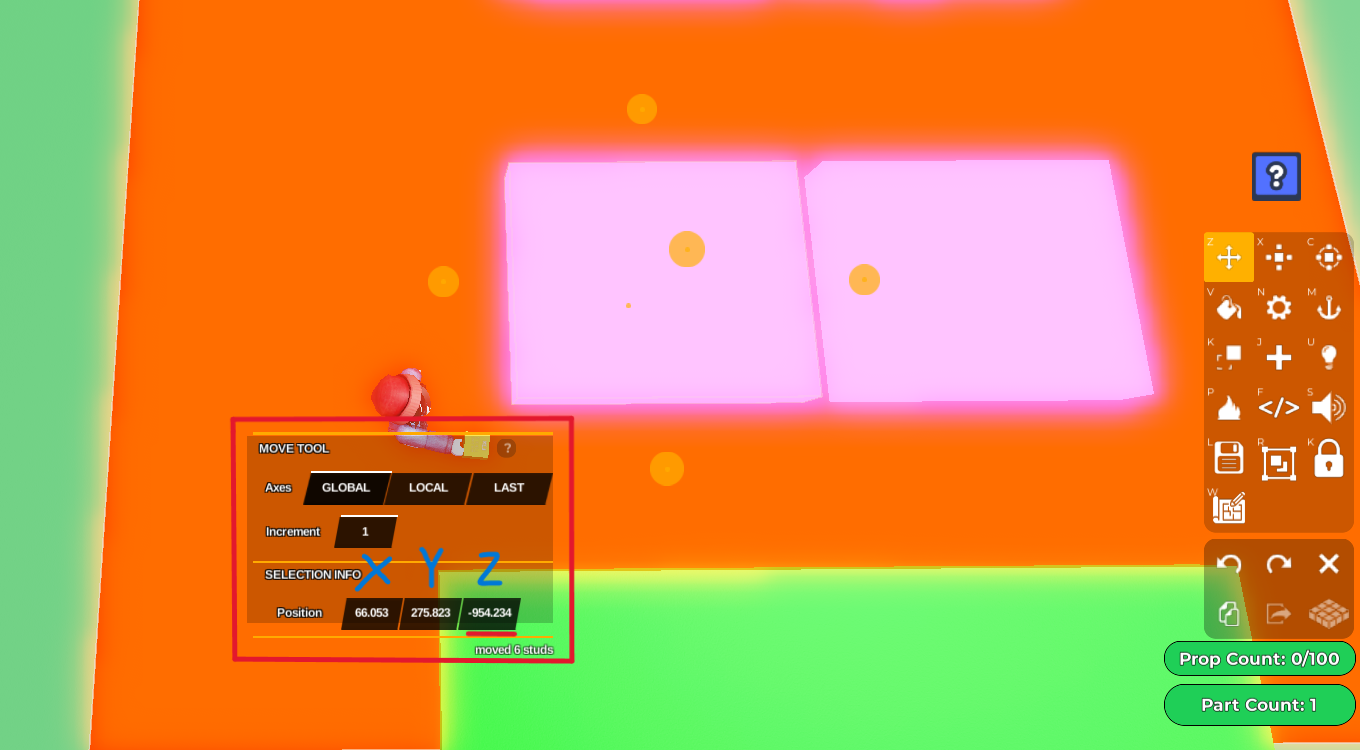
Select the object you'd like to move. I'll select the block I want to animate back and forth below. Use the move tool to check which axis you're moving the object on (x, y, or z). In this case, I'll be moving the object on the 'z' axis.
With the object selected, press the code builder button on the right toolbar (</> button). You should be able to see 'Properties', where you can press the 'Code Builder' button, opening the Code Builder tab. Name your script and object (eg. 'Move back and forth')
Go to 'Events' on the left and grab the
At startblock so the code runs immediately when playing your game. Then go to 'Control' and grab thedo foreverblock which should come with anendblock and place it belowAt start.Now we want to go to 'Motion' on the left and grab the
tween animation in plot to x : 0 y : 0 z : 0 in -- secondsblock. You want to place this in betweendo foreverandend. You can change the 'to' to 'by' in the dropdown option, so the block becomes atween animation in plot by x : 0 y : 0 z : 0 in -- secondsblock. We want to do this because it makes the animation easier to control rather than having to grab specific x, y, z coordinates within your plot.Now indicate the amount you'd like to move your object. In my case, I am moving the object to the right by 10 units, which is -10 units on the z axis. **You can check whether the value you'll be inputing will be a negative or a positive by moving your object in the direction you want it to move and observe the Position value (refer to image above) and see if it adds to its value or subtracts from it. **In my case, moving it to the right is a negative value, while moving it to the left is a positive value.
At this point, your code should look something like this :
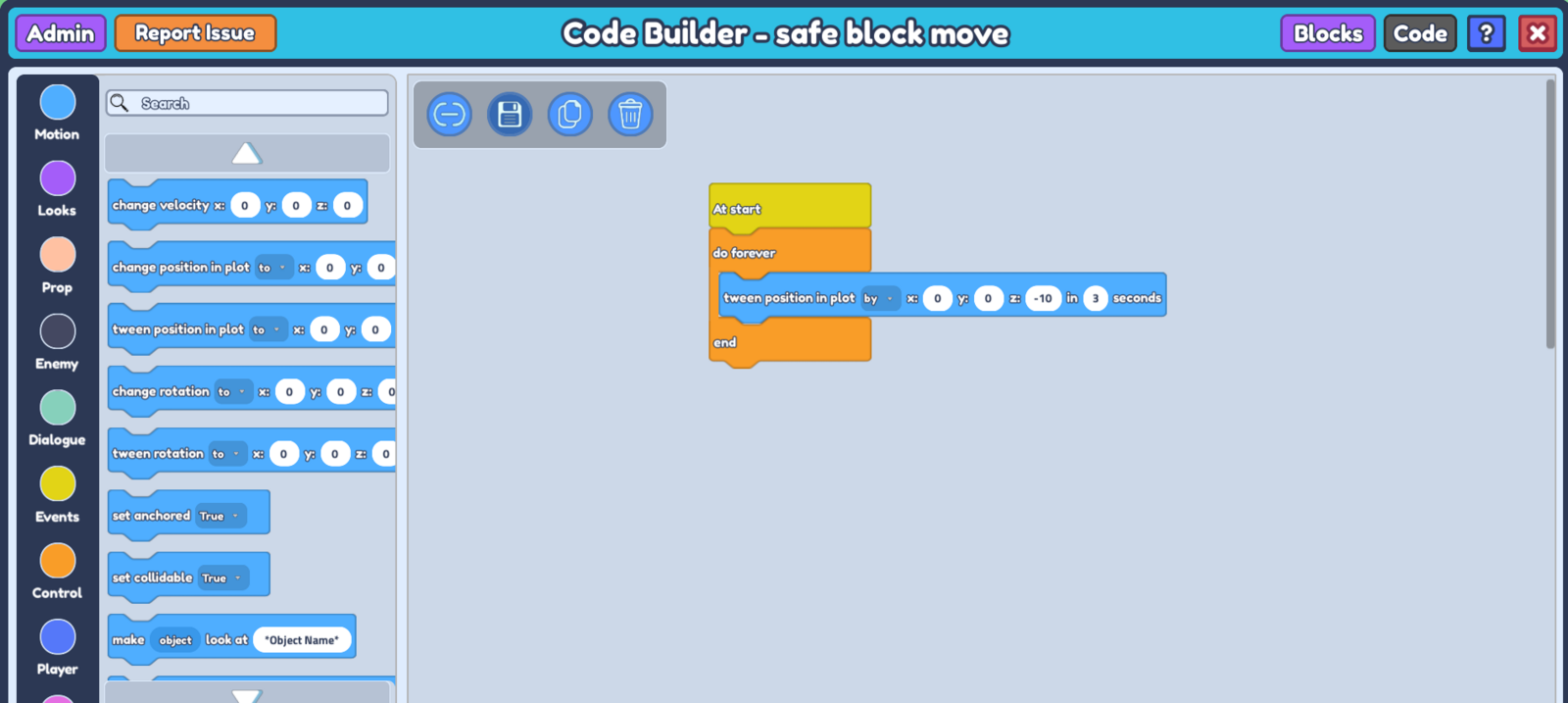 Don't forget to input how long you want the object to move from one point to another in
 wait -- seconds. I want the object to move quite slowly, so I'll input 3 seconds.
Now we want the block to go to its intended location before moving it back to its original position. So go to 'Control' on the left and grab the
wait -- secondsblock and place it just below your previous block, right before theendblock. You can have the block move back immediately, in which case it'll be 3 seconds ( the same amount of time you put in yourtween position*block *). Or if you want the block to stay in its new position for a while before moving back, you can input a longer time. In my case, I'll writewait 6 secondsso that my object stays in its new position for 3 seconds before going back.Now we want to move the object back. Duplicate your
tween positionblock and place it just below yourwait -- secondsblock.
Now this is where it gets interesting - the object will move the amount you indicate from its original position on the plot, not the position it just moved to. You might think all you need to do to move it back to its original position is to input the same amount you moved it by (which is negative 10 units) in the other direction *(which is positive 10 units) , * but **this will move the object to the left by 10 units more than the position it originally was, before you moved it to the right, ** which means the object will move a further 10 units from where you want it to go, moving a total of 20 units to the left. So when you are moving the object back, you are essentially moving the object from where you first placed it in the plot.
How do we negate this? Simple - We can't input '0' units as it will not move the object at all, so we input a number small enough so it seems like it went back to its original position. In this case, I'll have have it move by positive 1 unit. This will move it to almost its original position in the plot before you moved it to the right.
- Duplicate your
wait -- secondsblock and place it just below your newtween positionblock, just before theendblock. At this point your code should look like this:
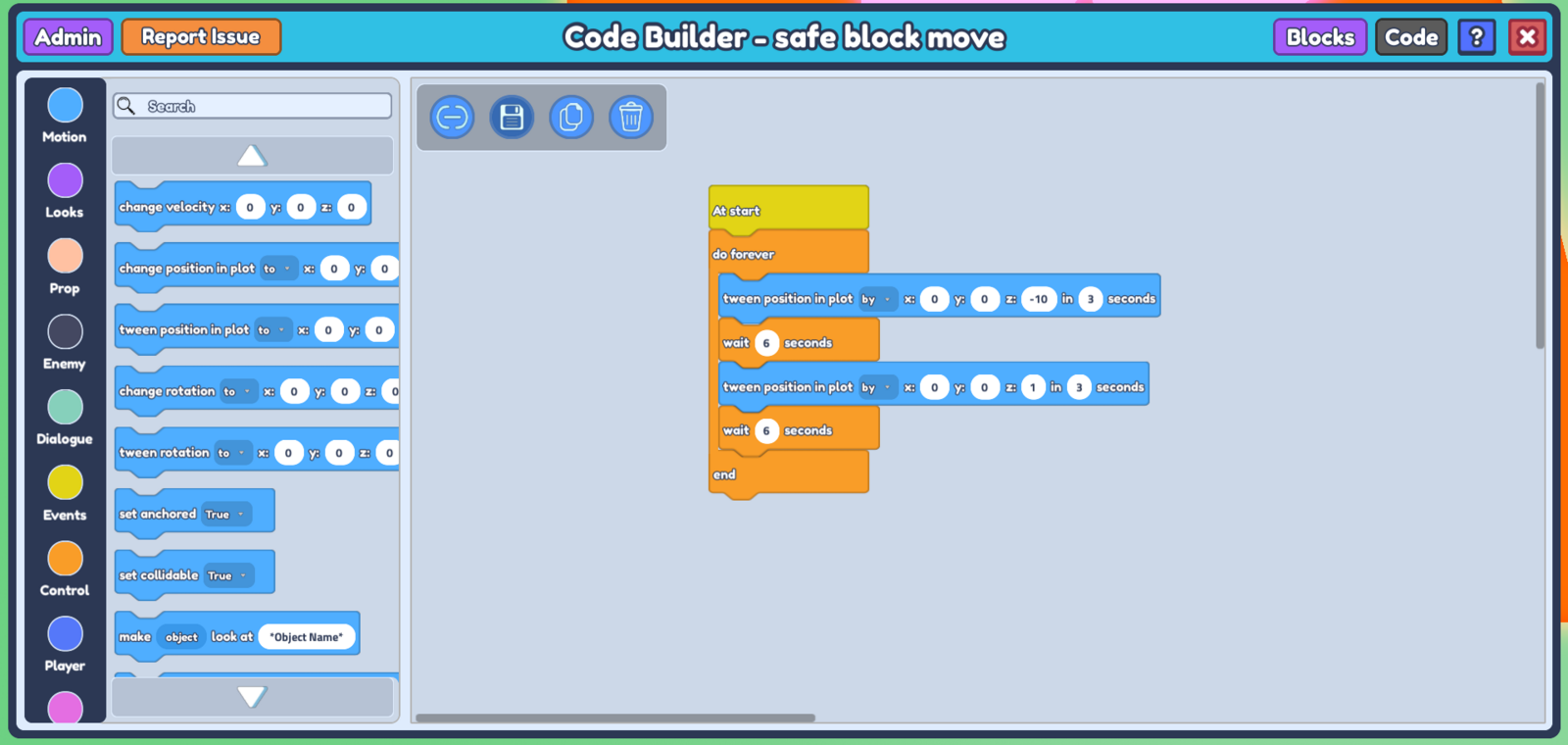 9. Save your code, and when you press play, you should see your object move back and forth seamlessly! You can customize this code however you want by playing with the values.