Using the
new part tool, place a part on the ground to act as your button, and another part to hold up your object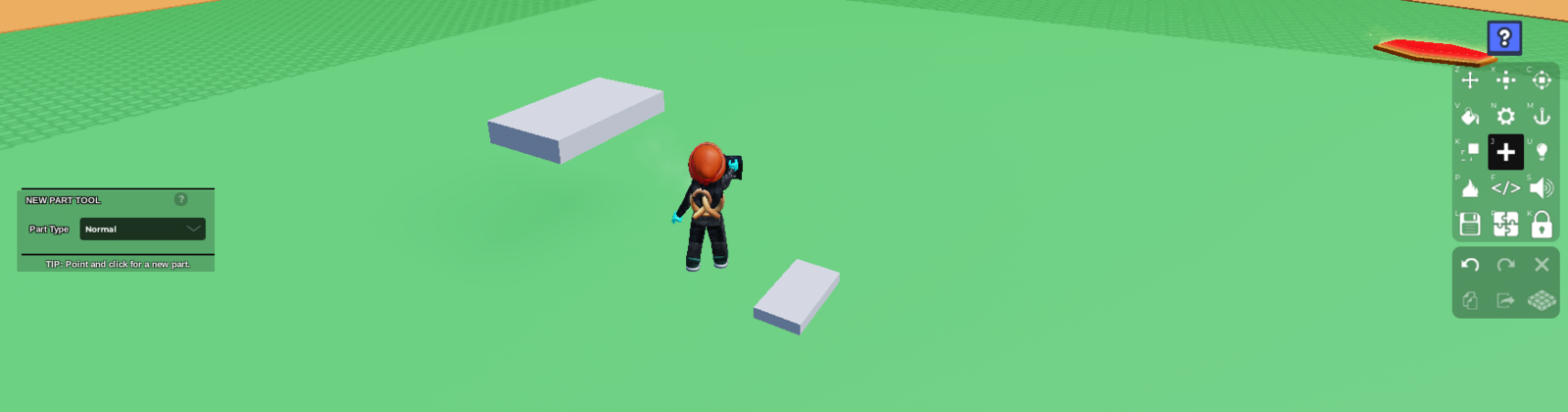
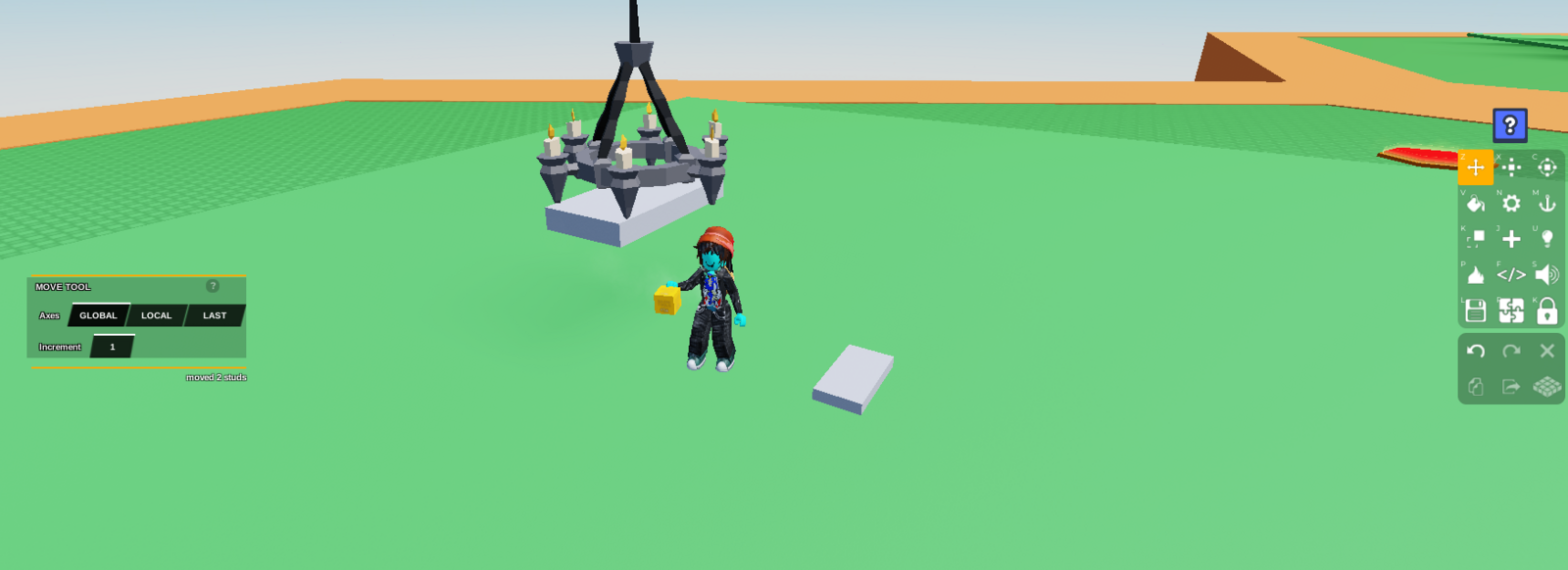
Place your object on top of the floating part.
It has to be a single part or prop or it will fall apart
Using the
Anchor tool, selectUnanchoredfor the object you wish to drop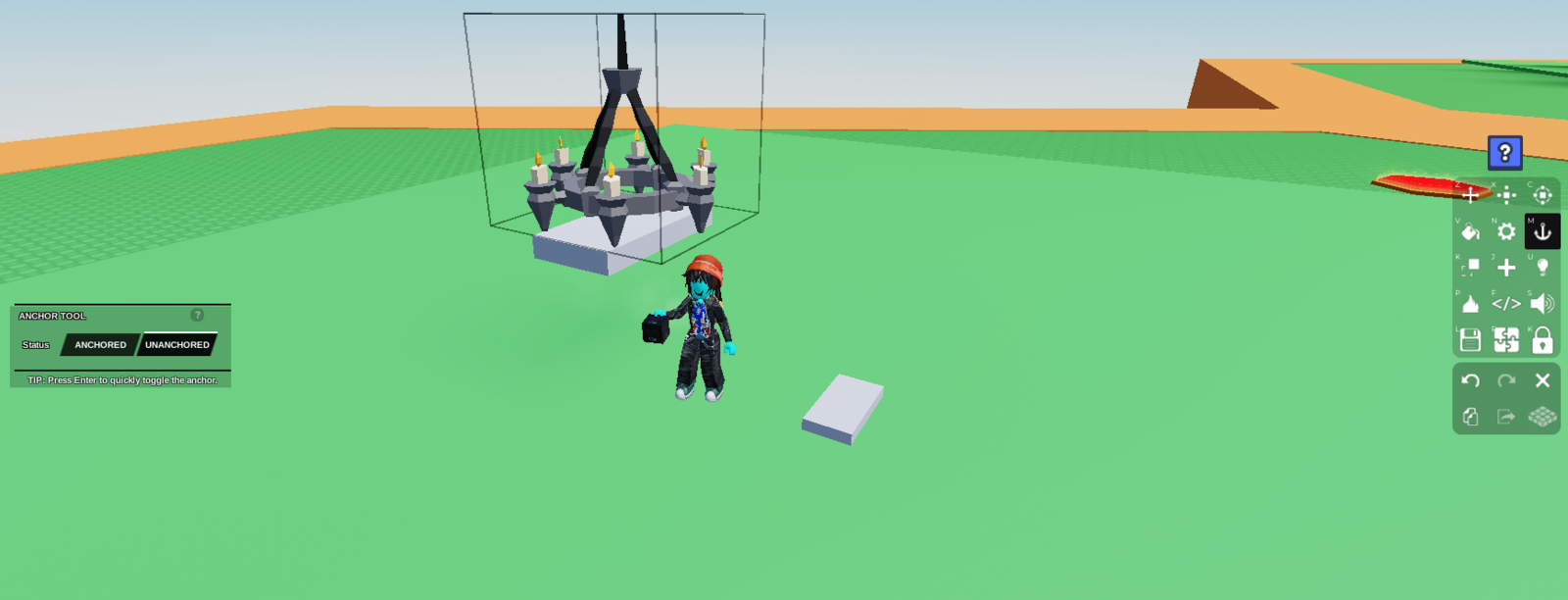
Using the
Material tool, set the floating part's transparency to 1, to hide it completely from view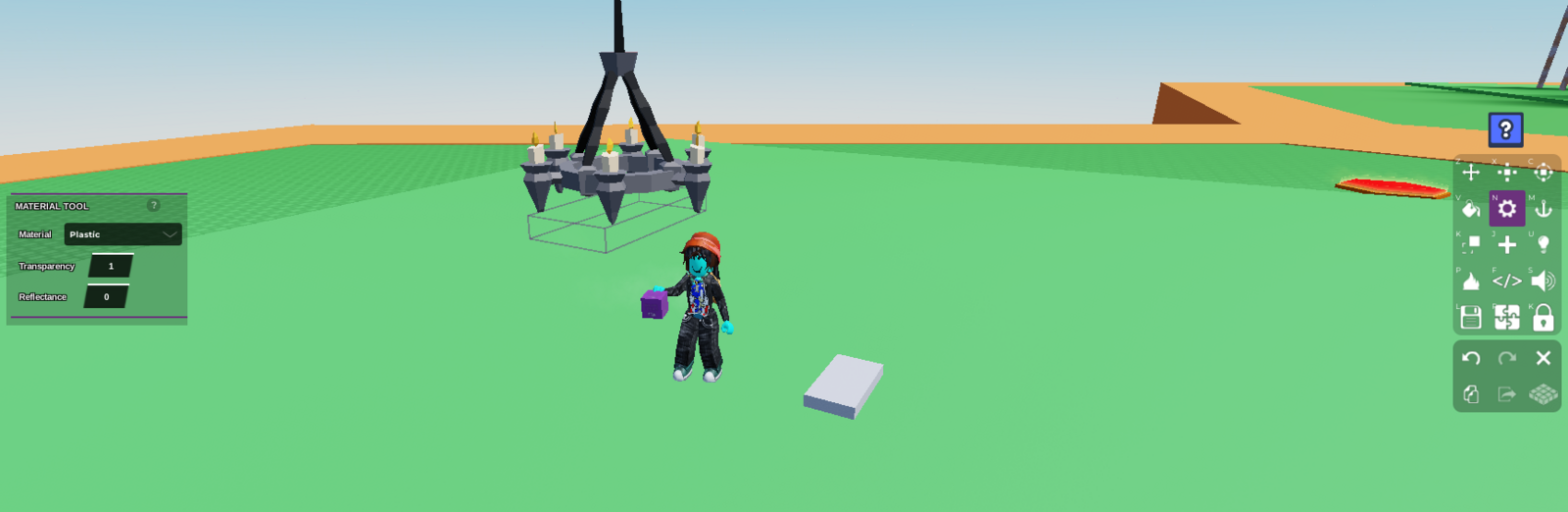
Select the transparent part and open up your code builder. Place a
When touched by a playerevent, followed by aBroadcast event. In the key, type the word "Destroy". Make sure to save before exiting.
Broadcast event means it will send a message to every part with the receiving code (Step 6) . In this case we want it to destroy so we use the key word "Destroy" as our linking word
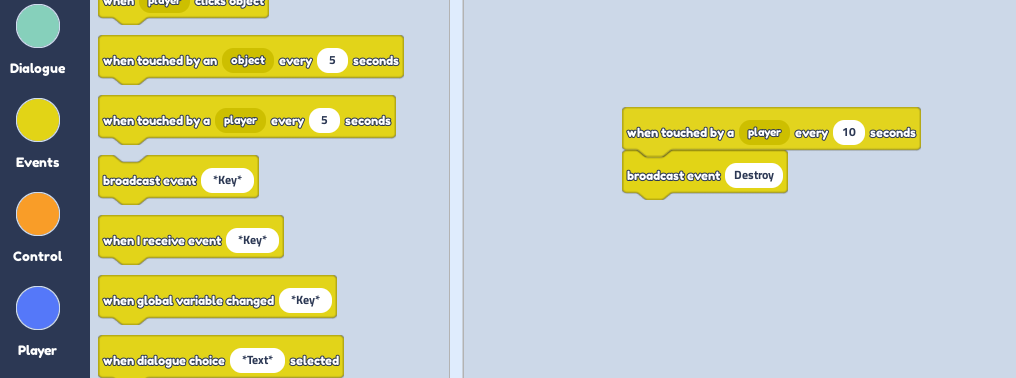
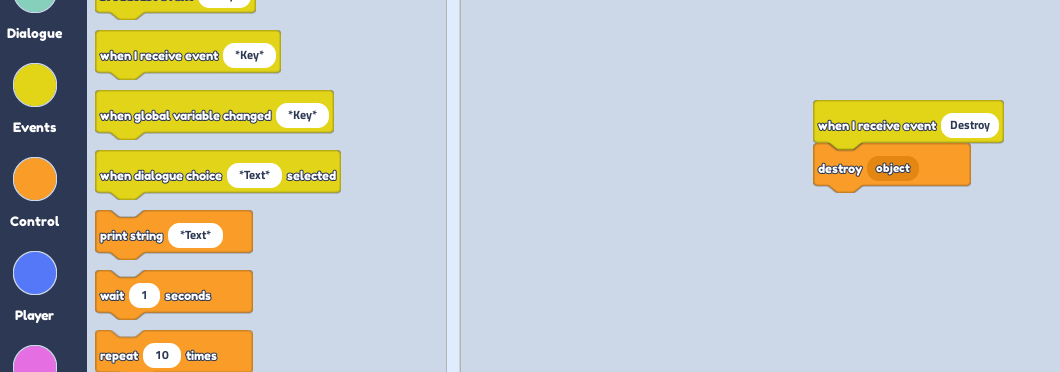
- Select your button part and open up the code builder. Place a
When i receive event, followed by aDestroy object. In the key, type "Destroy" to link it to the transparent block
make sure you spell Destroy correctly in both codes or it wont work