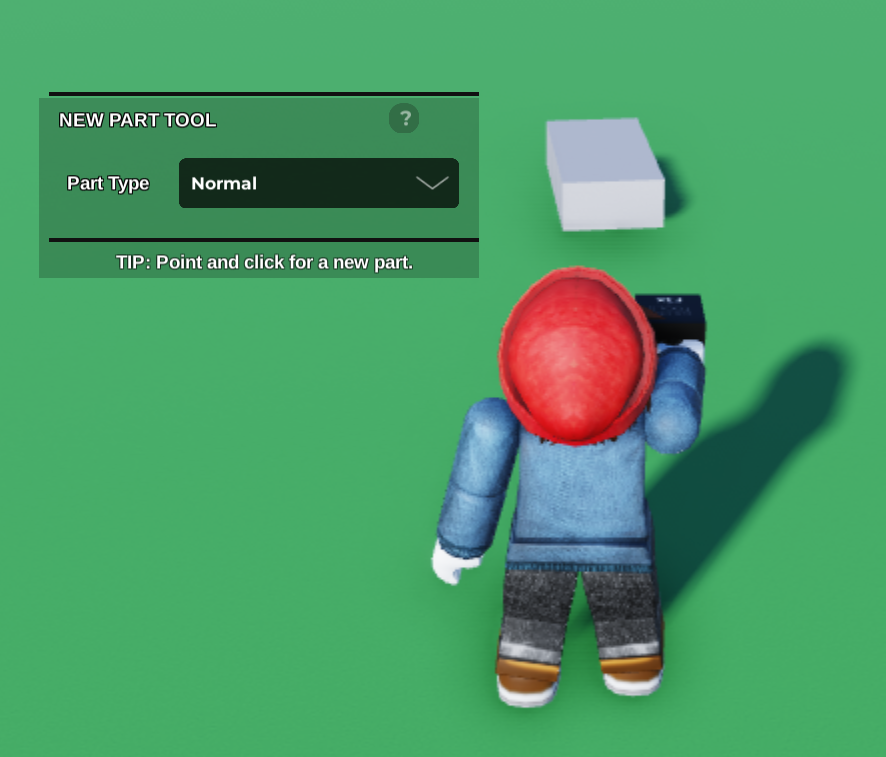
Start by using the New Part Tool to place your button part on your plot.
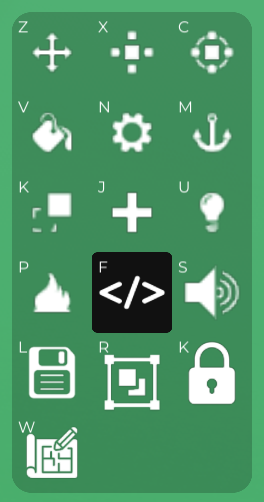
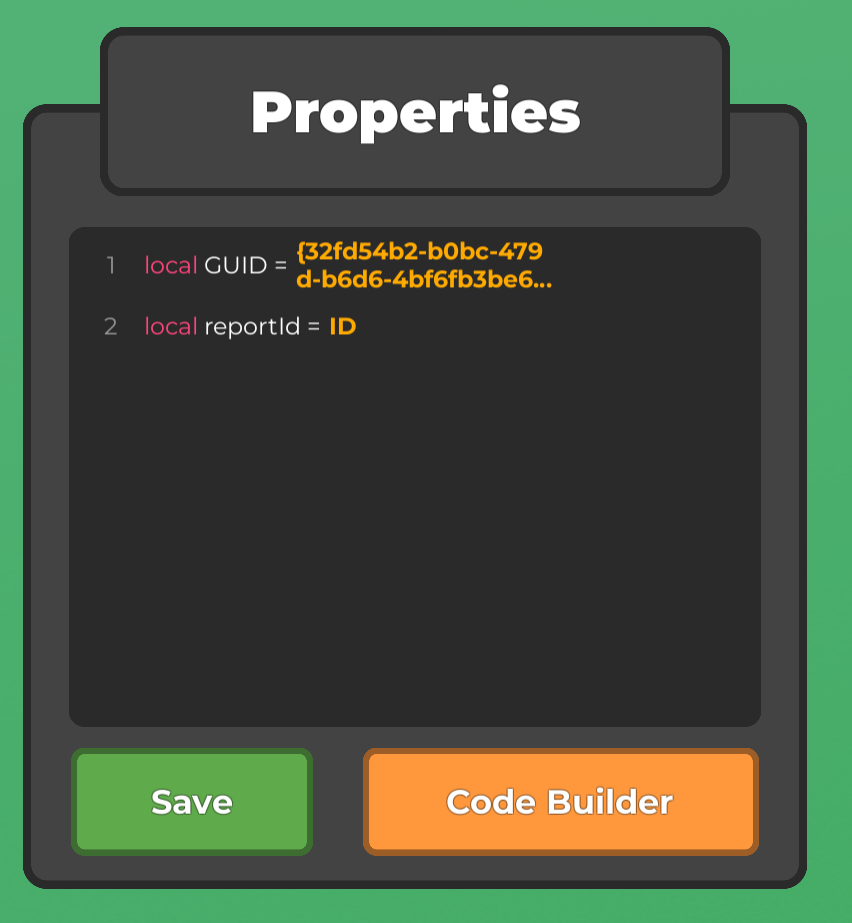
Next, click this button to open up the Properties tab, then open up the Code Builder
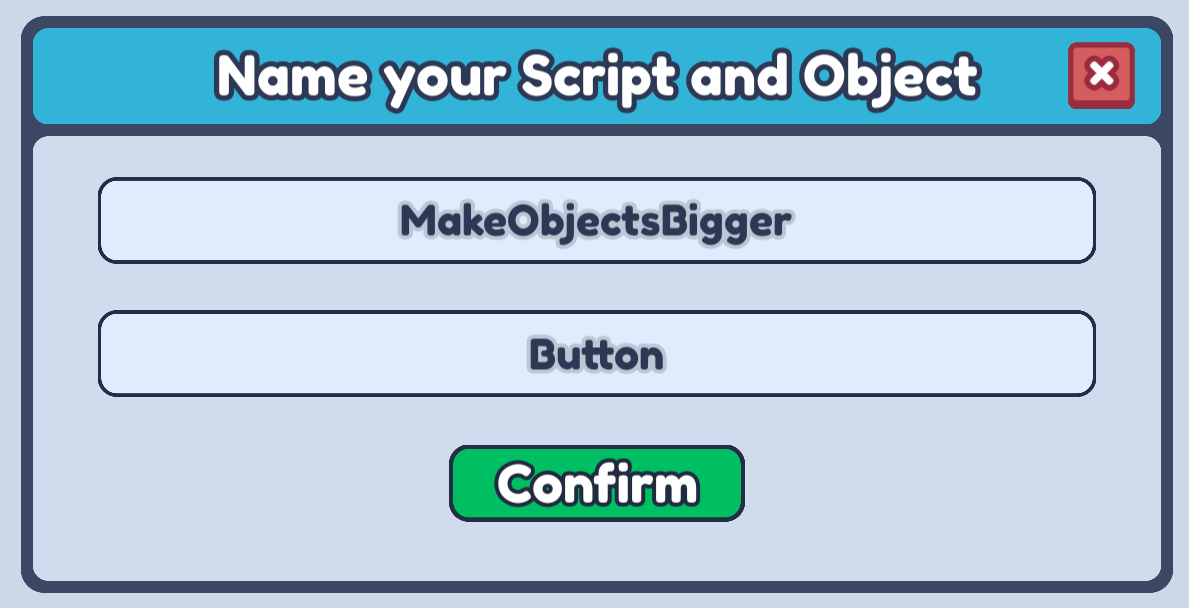
Now, let's open up the Code Builder on our button and name the script anything that describes what it will do!
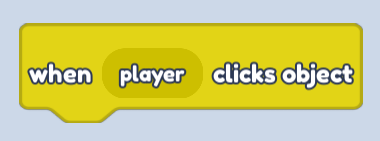
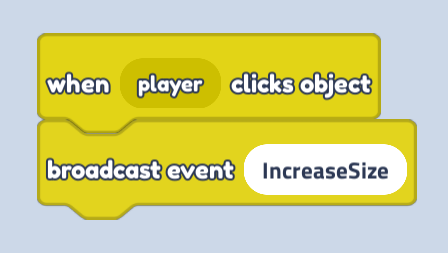
Inside our Code Builder, go ahead and open up the Events block and drag a when player clicks object block into our scripting area. This will activate any time we click on our button part.
After that, we can also drag in a broadcast event block and use IncreaseSize as our event name.
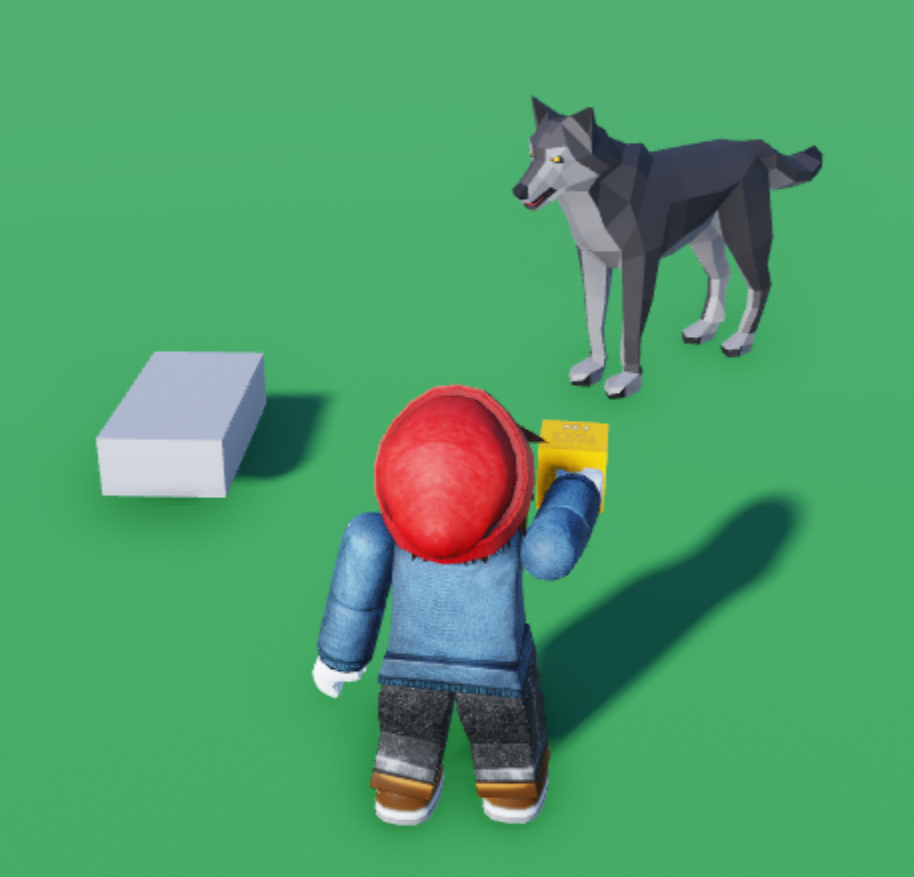
Back in our plot, let's now use our Props menu to add the object that we want to enlarge when our button is clicked. I am going to choose a Wolf!
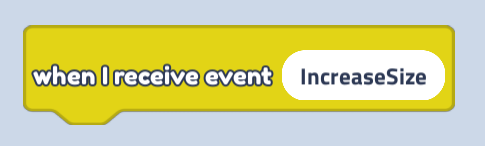
Next, let's open up the Code Builder on our Wolf object, open up our Events blocks, and drag in a when I receive event block. We will again use the IncreaseSize event name so that this block activates when a player clicks the button.
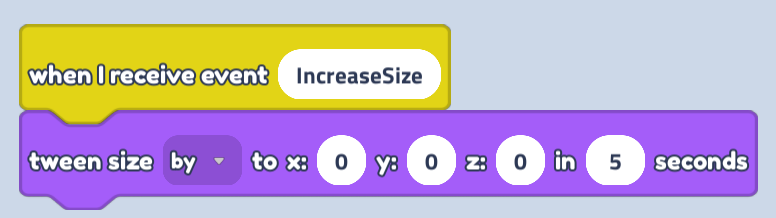
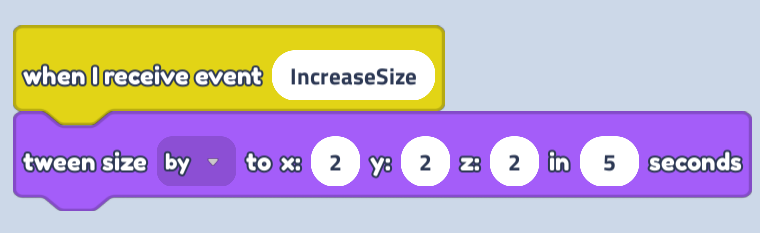
Then open up our Looks blocks and drag a tween size by block. Make sure to set the dropdown setting to by rather than to.
Now can choose how much we want to increase our object size, I'm going to go with 2 for X, Y and Z!
Finally, click Play My Game, click on your button, and watch your object grow!