- Select the object you wish to make scatter, and make sure the object has its collision on.
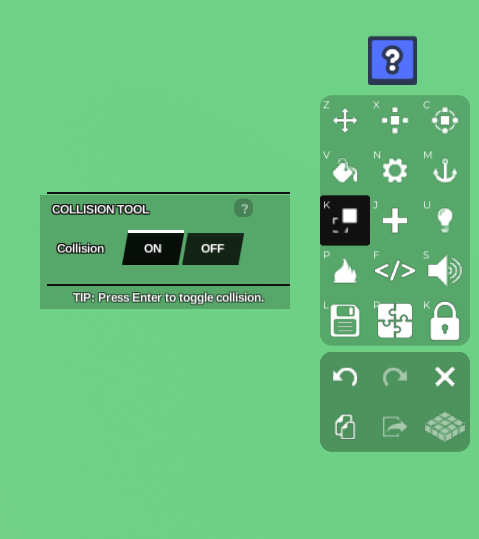 2. Press the Code Builder button on the toolbar. This should open a 'Properties' tab with the options, 'Save' and 'Code Builder'. Press 'Code Builder'. This should lead you to the Code Builder tab.
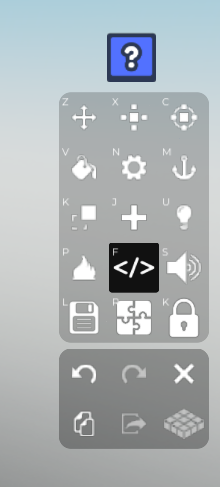
Name your script and object, and the Code Builder tab should appear. Go to 'Events' on the left, and grab the
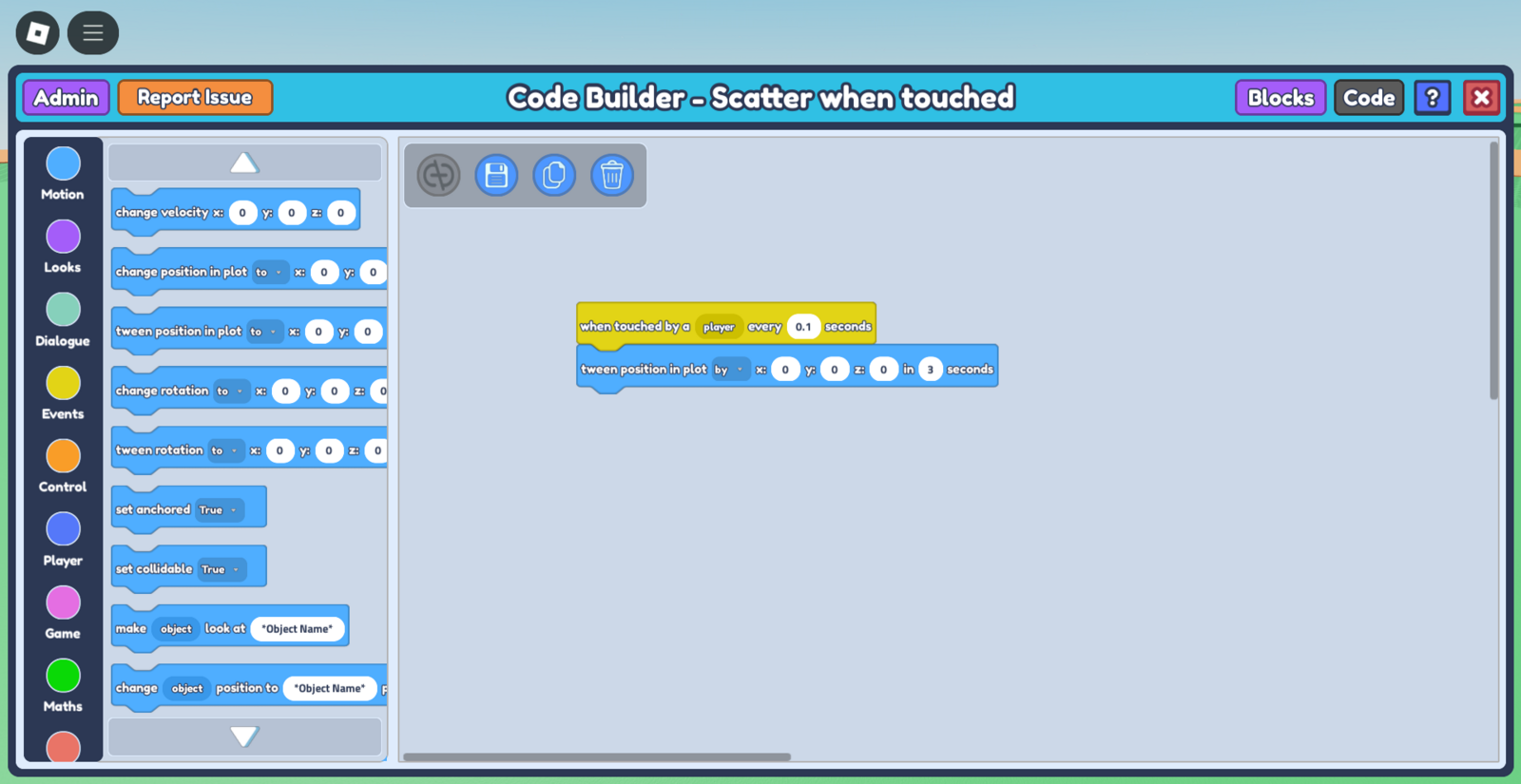
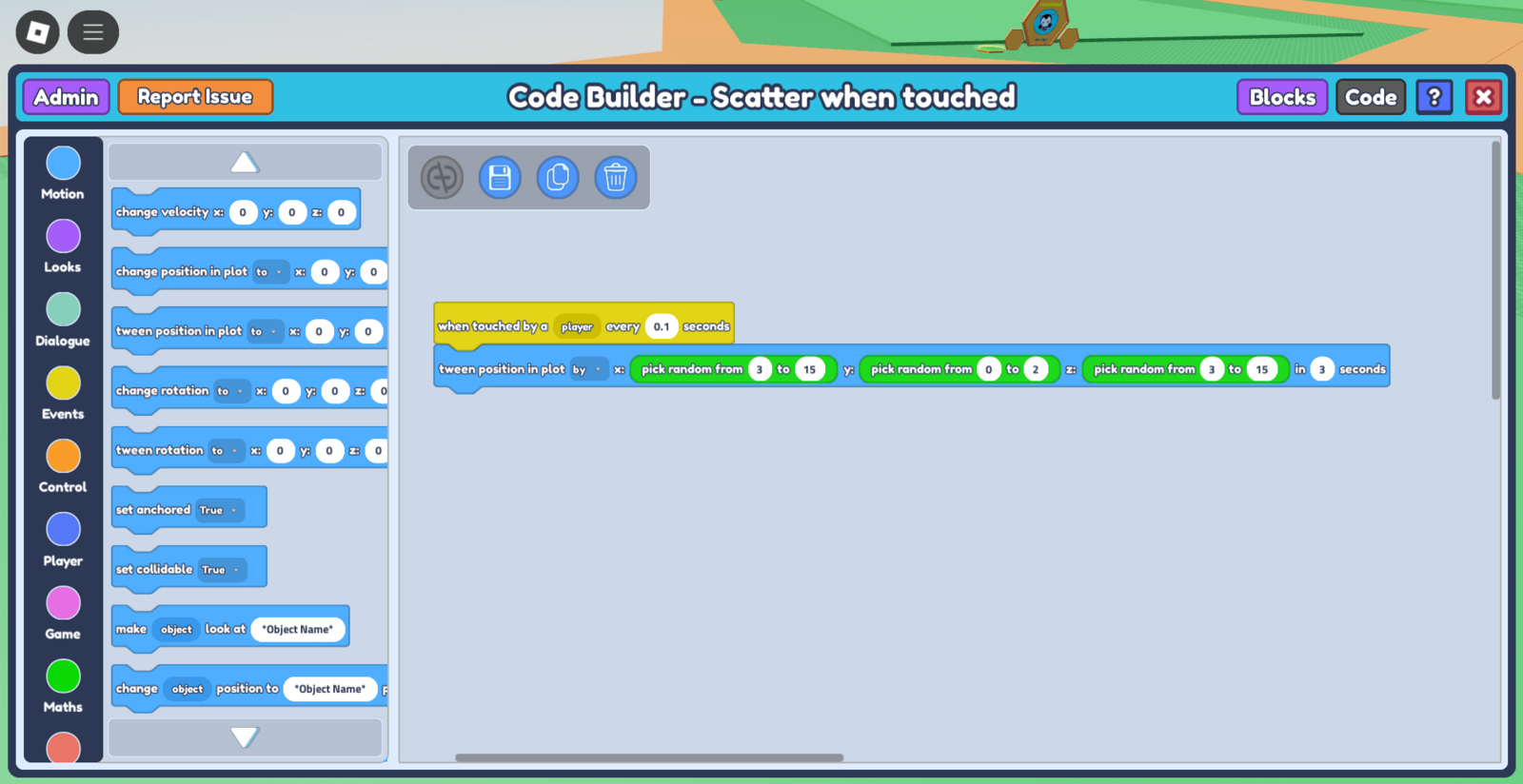
when touched by player every - secondsblock. The -- seconds indicate the amount of 'delay' before the code can run again. In this case, I want the code to run again immediately after it is triggered, so I'll input a small number - 0.1 seconds. (Note - for this interaction to run smoothly without lag, input a number less than 1)Afterward, go to 'Motion' on the left, and grab the
tween position in plot to x : 0 y : 0 z : 0 in - secondsblock and place it below your previous block. Change 'to' to 'by' simply by pressing the 'to' dropdown so that the block turns intotween position in plot by x : 0 y : 0 z : 0 in - seconds.Input the amount of time you'd like for the object to scatter from point a to b in the
tween position in plot by x : 0 y : 0 z : 0 in - secondsblock. In this case, I don't want to scatter them too fast, so I'll input 3 seconds. At this point, your code should look like this:
Now go to 'Maths' on the left, and grab the
pick random from 1 to 10block. This block selects a random value between 1 (minimum value) to 10 (maximum value) which will indicate the distance moved by the object.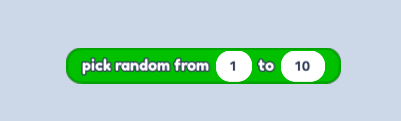
We want to insert this green block in the previous block's x, y, and z values, so make 3 duplicates of this block. These values control which direction the object scatters to - changing the x and z values moves the object horizontally, while changing the y value moves the object vertically. In this case, I want the object to scatter further horizontally than vertically, so I input a minimum value of 3 and a maximum value of 15 for the x and y values. For the y value, I input a minimum value of 0 and a maximum value of 2. Feel free to customize your values however you want, but it should look something like this:
 8. Save your code, select your object and press the 'Clone' button on the bottom left of the toolbar to duplicate your object.
 Duplicate your object around your plot.
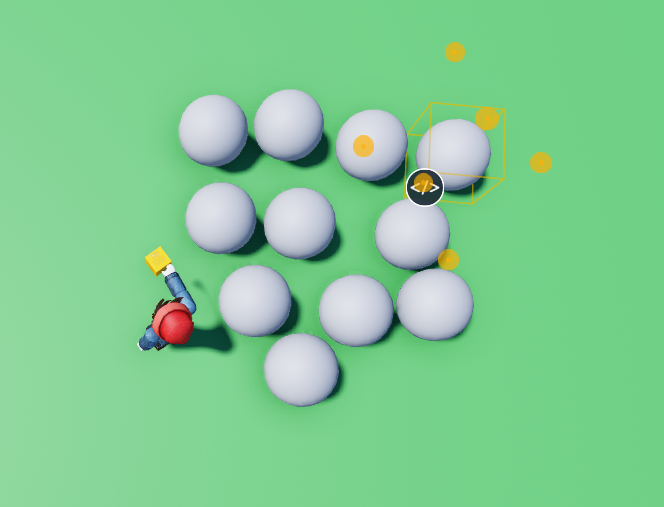
- Press 'Play' and select 'Play my game', and you will see these objects scatter when your player touches them! Feel free to customize this code by playing with the values to get the scatter effect you want!