This code will teach you how to make blocks disappear one after another, perfect for an obby!
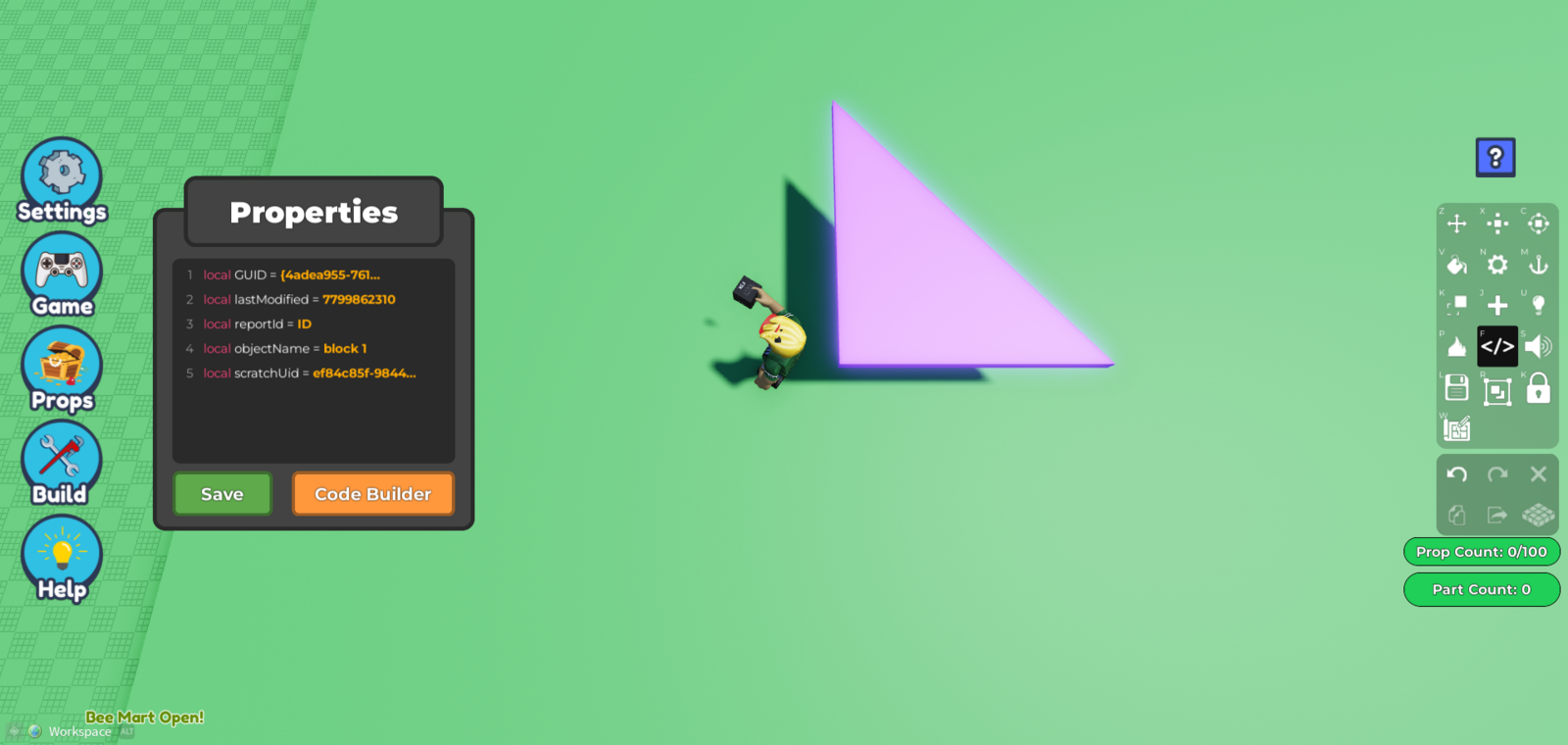
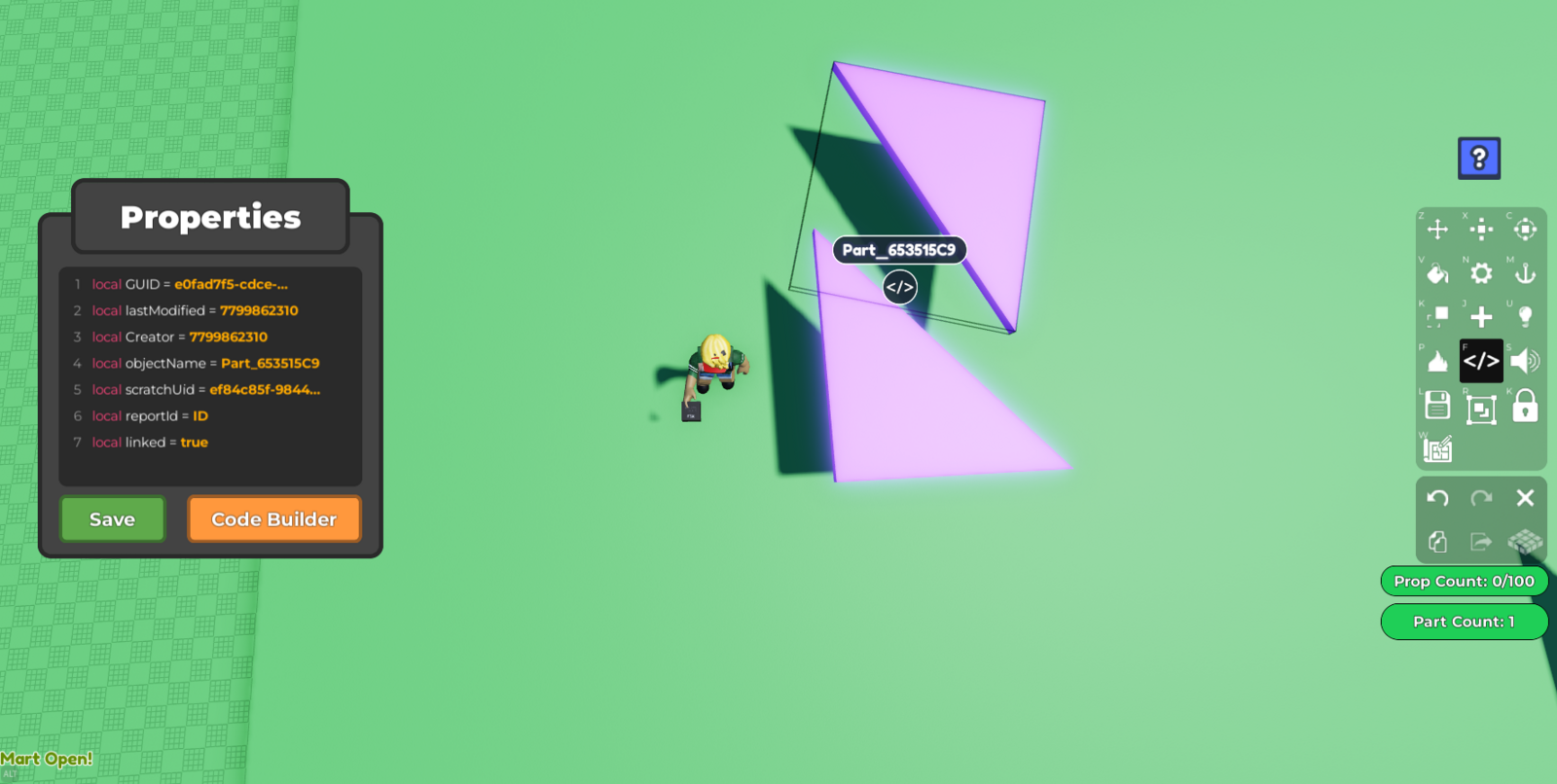
- Create a block in your plot. Select the block, and press the Code Builder button on the toolbar. This should open a 'Properties' tab with the options, 'Save' and 'Code Builder'. Press 'Code Builder'. This should lead you to the Code Builder tab.
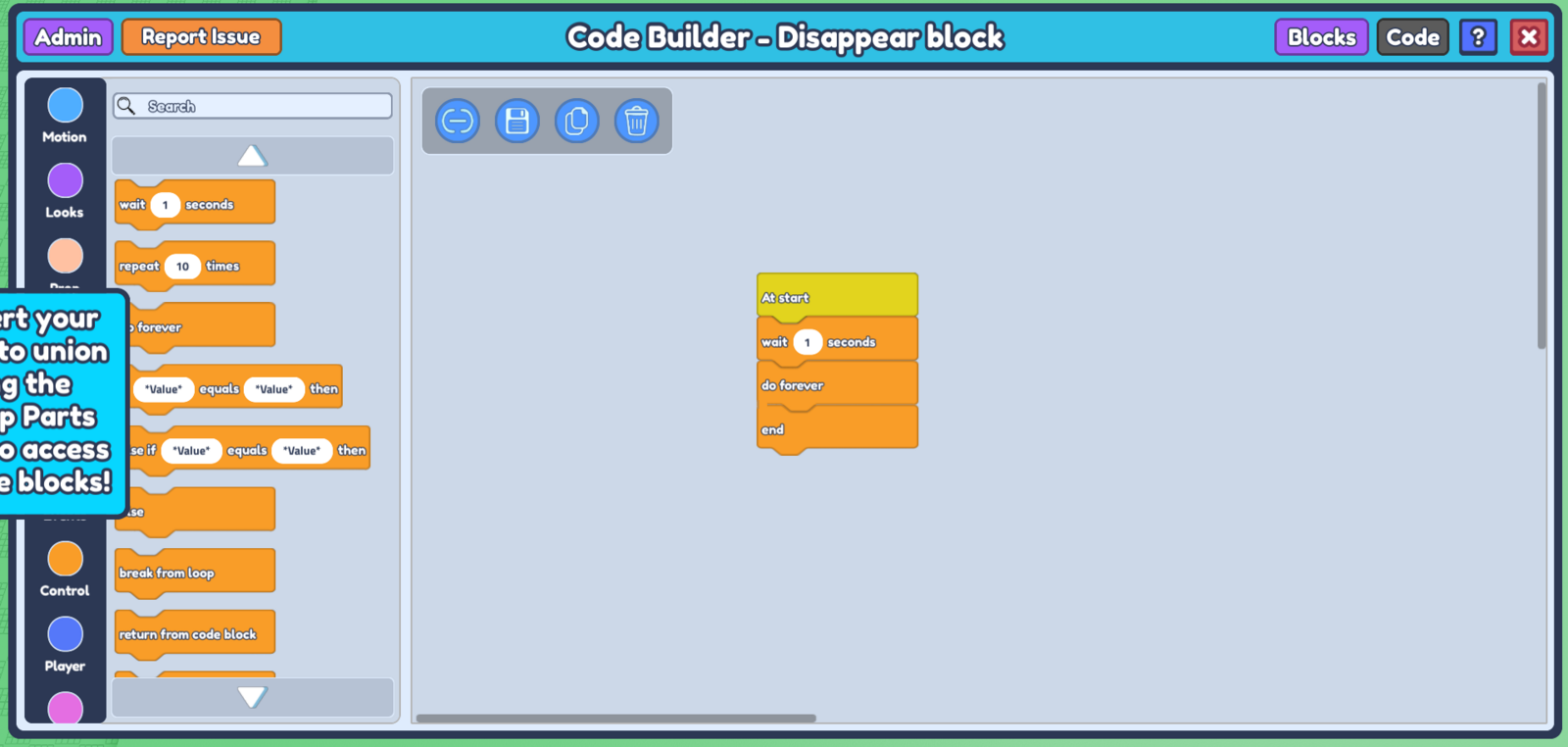
- In Code Builder, go to 'Events' on the left and grab the
At startblock. Then go to control and grab thewait -- secondsblock and thedo foreverblock. Place theAt startblock followed by thewait -- secondsblock right below it, and thedo foreverblock and the very bottom. Your code should look like this:
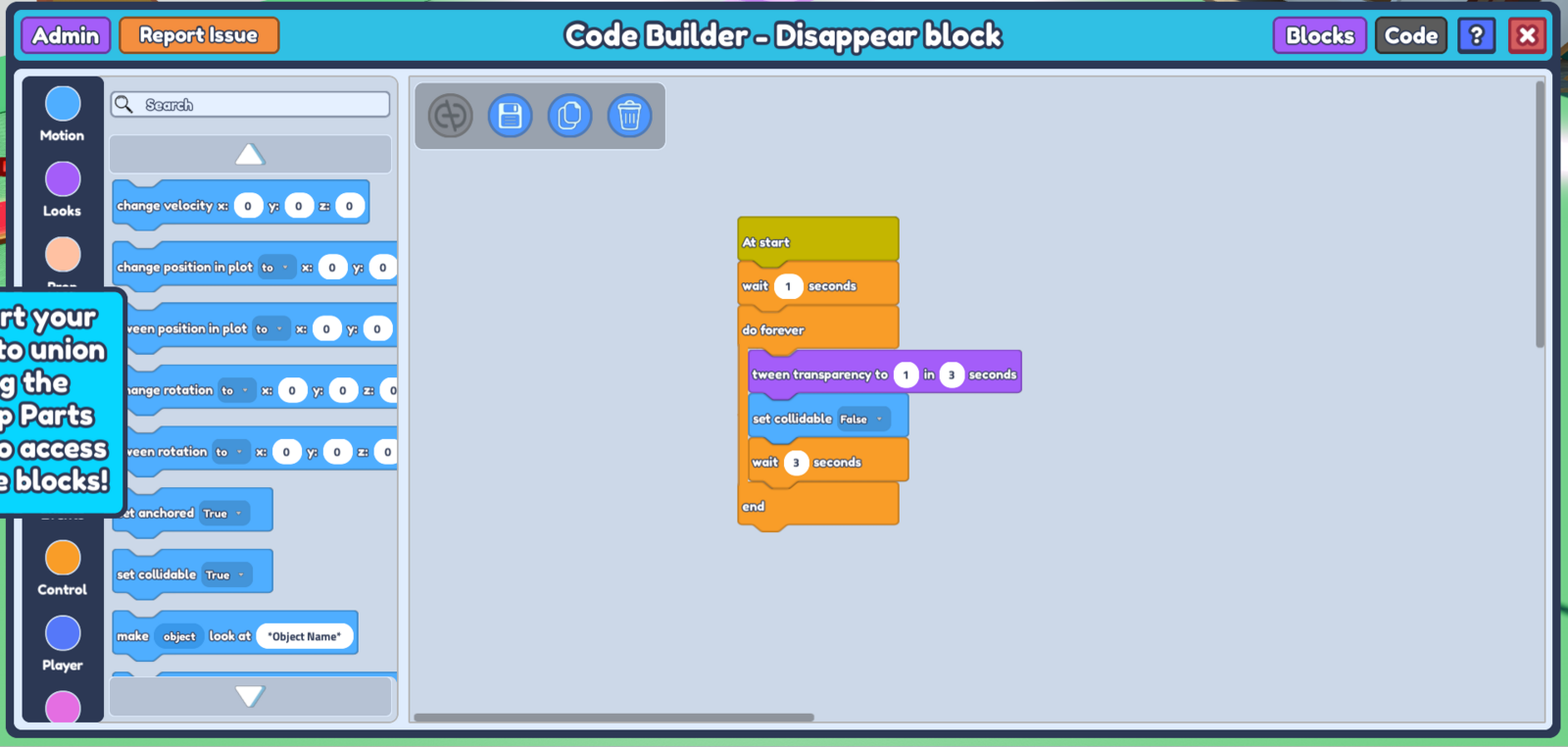
Now let's make the disappearing block function! Refer to this article for a further explanation regarding how the code works, but essentially we want to get the object to go transparent and be un-collidable, and make it appear again after some time. For this we want to go to 'Looks', grab the
Tween transparency to - in - secondsblock, and place it in betweendo foreverandend. Input 1 in tween transparency to make the object completely transparent, and input the duration of time you want the object to transition to complete transparency. I'll set it to 3 seconds now.Go to 'Motion' and grab the
set collidable Trueblock, and set it to 'False'. This will make the object un-collidable. Place this block right below theTween transparencyblock, then go to 'Control' again and **grab another **wait -- seconds block, and place it right below yourset collidable block. Thiswait -- secondsindicates how long the object disappears for, so input whatever duration you'd like (I input 3 seconds).
At this point, your code should look like this :
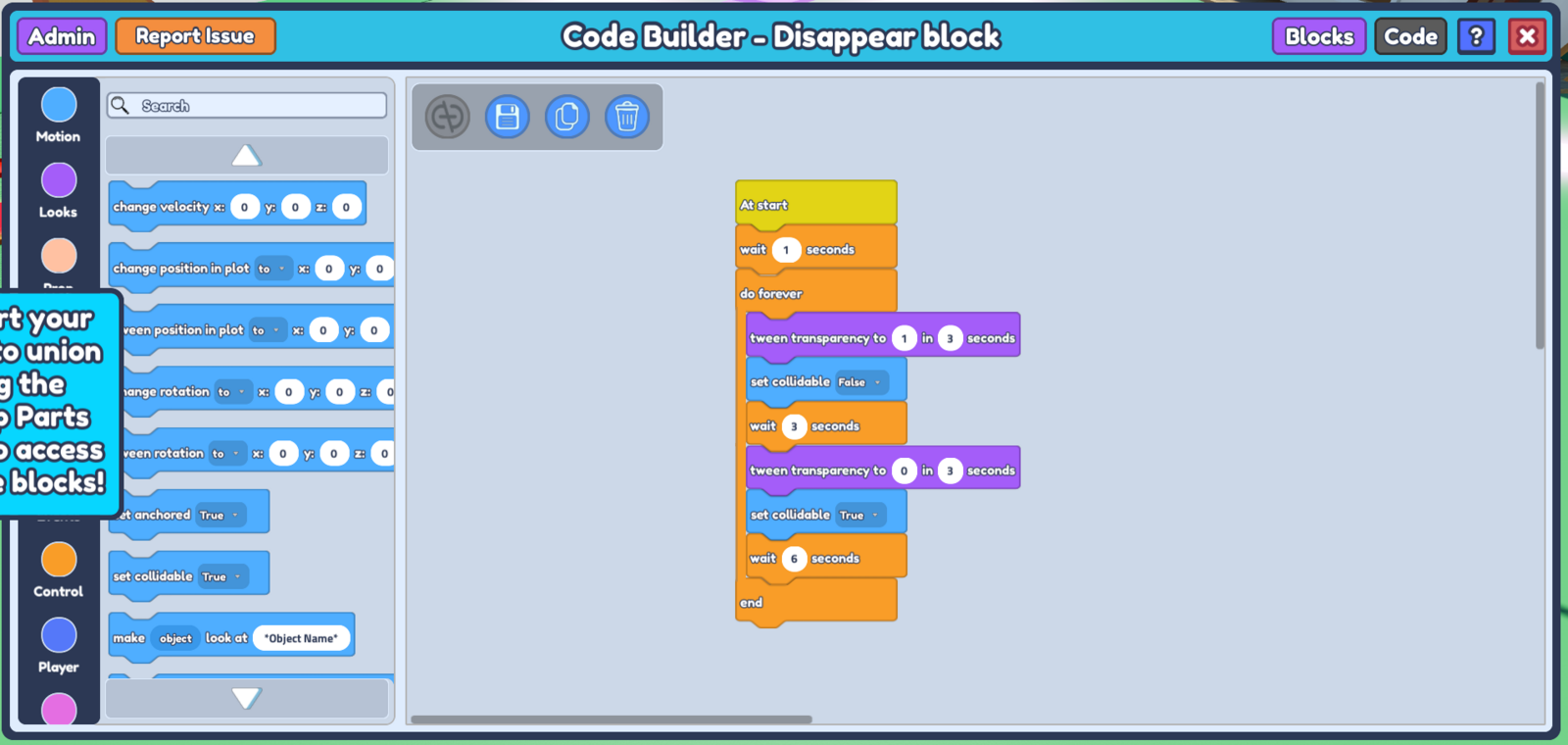
- Now we want to make the object appear again after the 3 seconds, so let's duplicate all the blocks between
do foreverandendand place them right belowwait 3 seconds. We'll reverse the values, setting transparency to 0 and collidable to True, so it appears instead of disappears. We also want to add 3 seconds to our newwait -- secondsblock to account for the time it takes for the object tween fully transparent, so in this case it will be 6 seconds. Your code should look like this now :
- Don't forget to save your code, and let's go back to our plot. Duplicate your object and select it, and open Code Builder for that object. You should see that the code is exactly the same as the original object, with the exact same values.
 7. Click the 'unlink' button on the top left side of the Code Builder to unlink this object from the previous one, so you can edit the code without affecting the original object as well. The button should go gray once it is successfully unlinked.
  8. Now all that's left to do is to change the
 wait -- seconds block right below the At start block. As we want this object to disappear after the original object, we want to set it to more than the value in the original code. I want this object to disappear 1 second after the original object starts disappearing, so I'll set it to 2 seconds.
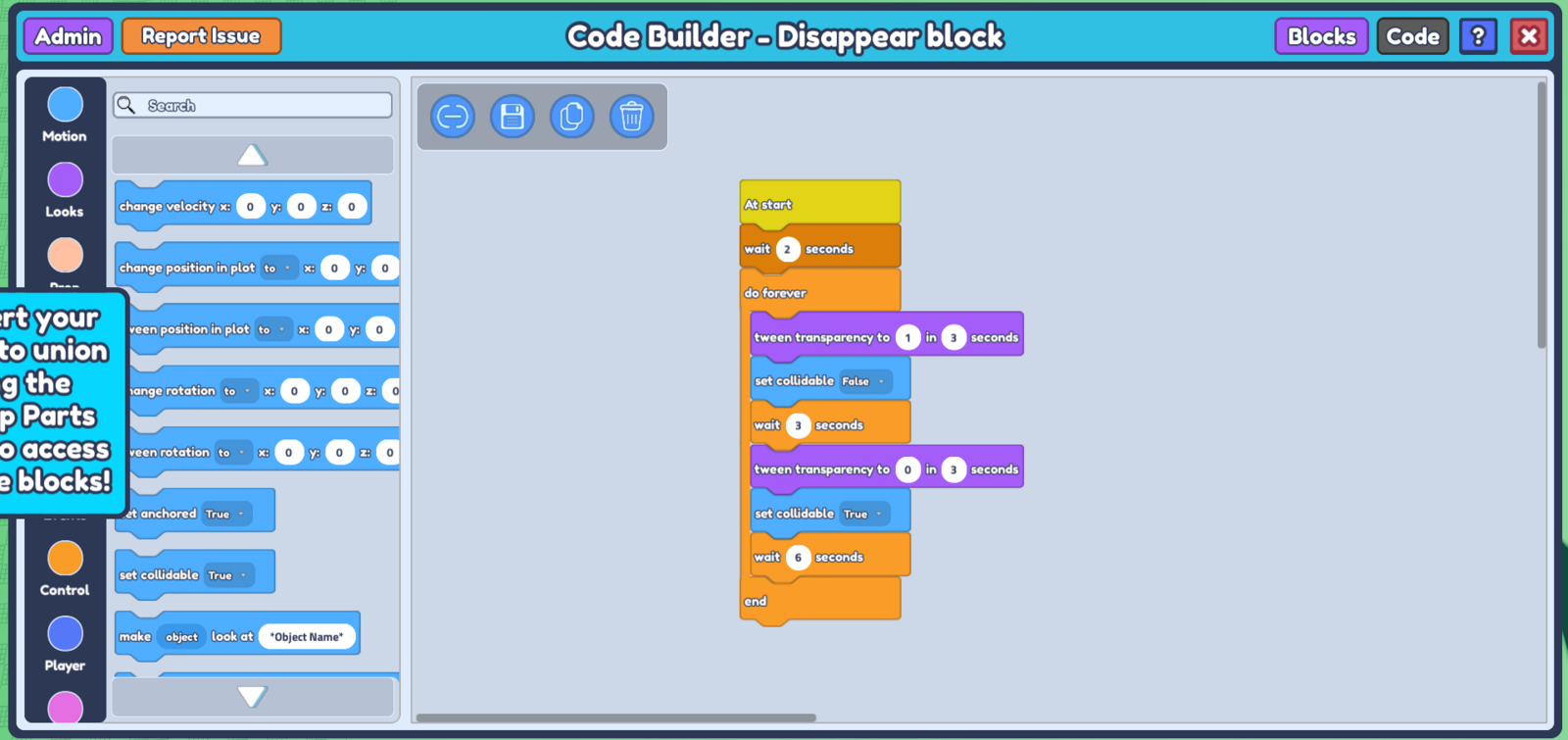
Now comes the repetitive part - with however many objects you wish to have disappear in a sequence, you need to do the same process - duplicate, unlink, change the
wait -- secondsvalue. Each object should have a different amount of time forwait -- seconds, or they will disappear at the same time instead of one after another. Don't forget to save your code after each one!After all that's done, you can press 'play' and you should start to see your objects disappearing in a sequence!