The Character Builder lets you make and customise your own character right in the browser, then build your own hats, hair and accessories to go with it. Here's how to get started.
Open the Character Builder
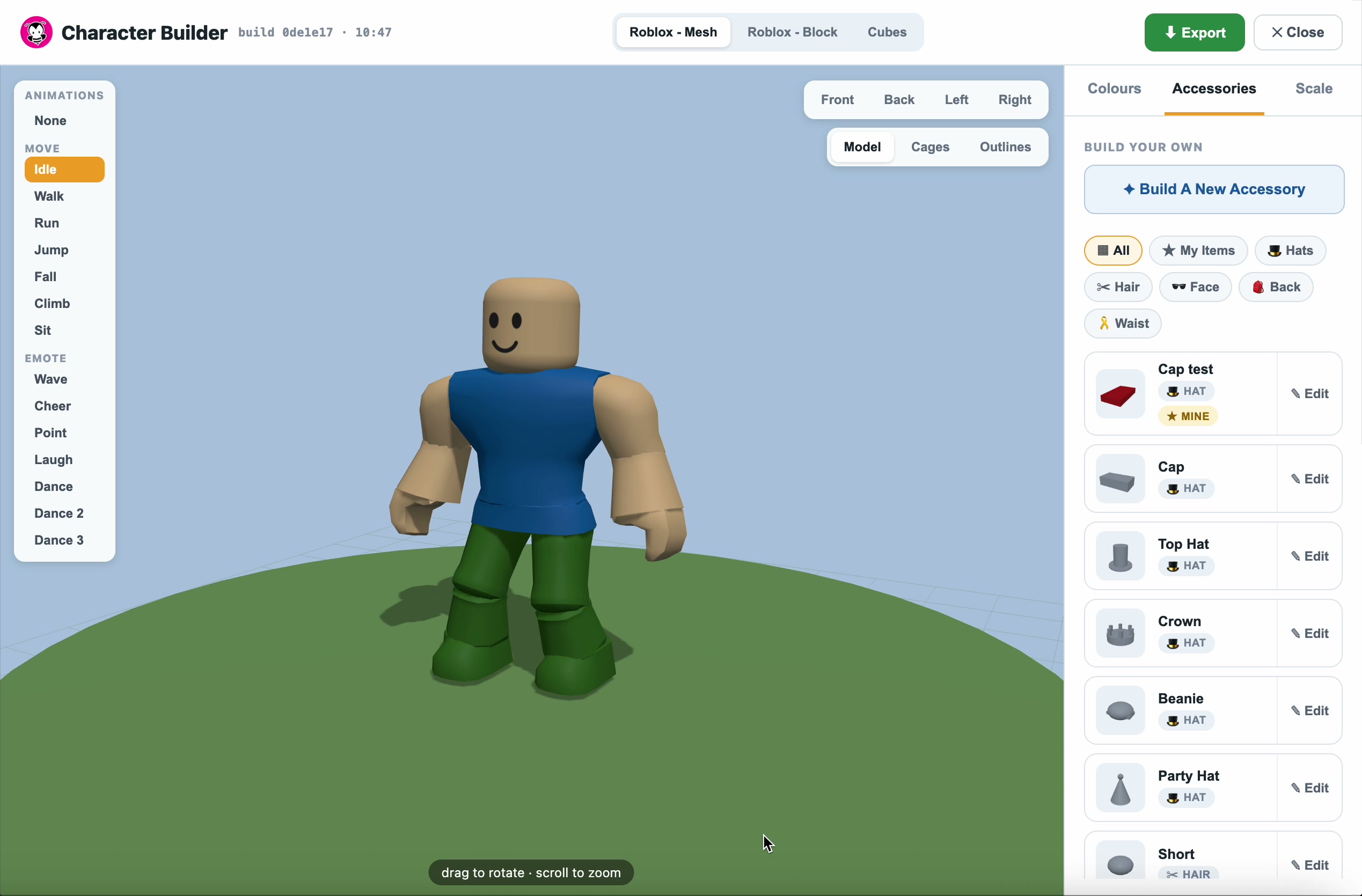
Open the Character Builder in your browser. You'll see your character in the middle, the animation list on the left, and the editing tabs (Colours, Accessories, Scale) on the right.
1. Choose your character model
At the top of the screen, pick the look you want:
- Roblox - Mesh — the smooth, rounded Roblox character
- Roblox - Block — the classic blocky Roblox character
- Cubes — a simple cube character
Tip: use the Front / Back / Left / Right buttons (top right) to spin the camera, and switch between Model, Cages and Outlines to see your character in different ways.
2. Try out the animations
Click any animation in the list on the left to see your character move:
- Move animations — Idle, Walk, Run, Jump, Fall, Climb, Sit
- Emote animations — Wave, Cheer, Point, Laugh and the Dances
- Click None to make your character stand still
3. Recolour your character
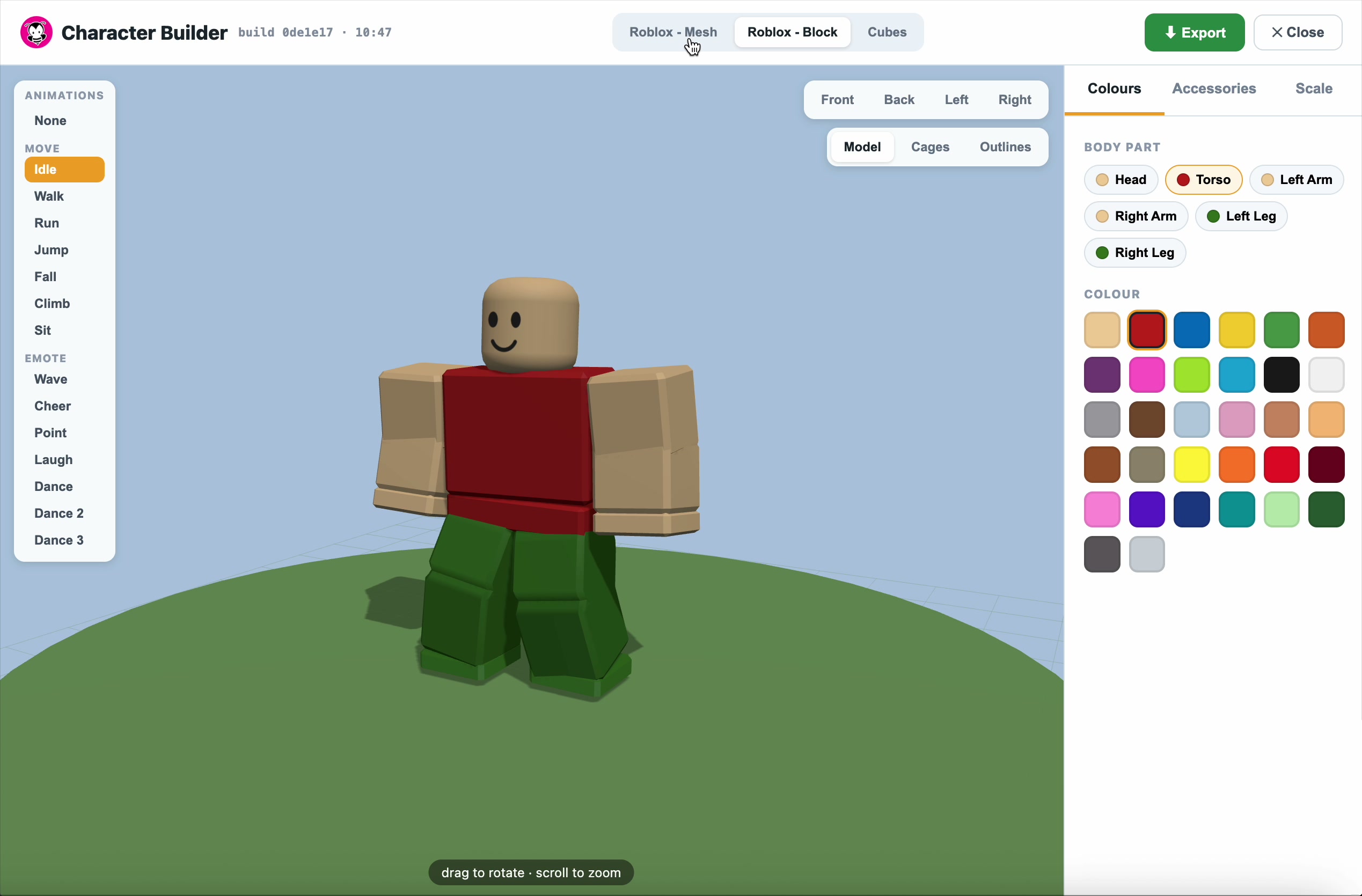
Open the Colours tab on the right:
- Pick the body part you want to change (Head, Torso, Arms, Legs)
- Tap a colour from the palette to paint it on
- Repeat for each part until your character looks just how you want
4. Build a custom accessory
This is where you make your own hats, hair and accessories.
- Open the Accessories tab
- Click Build A New Accessory to start fresh — or pick an item and click Edit to start from one that already exists
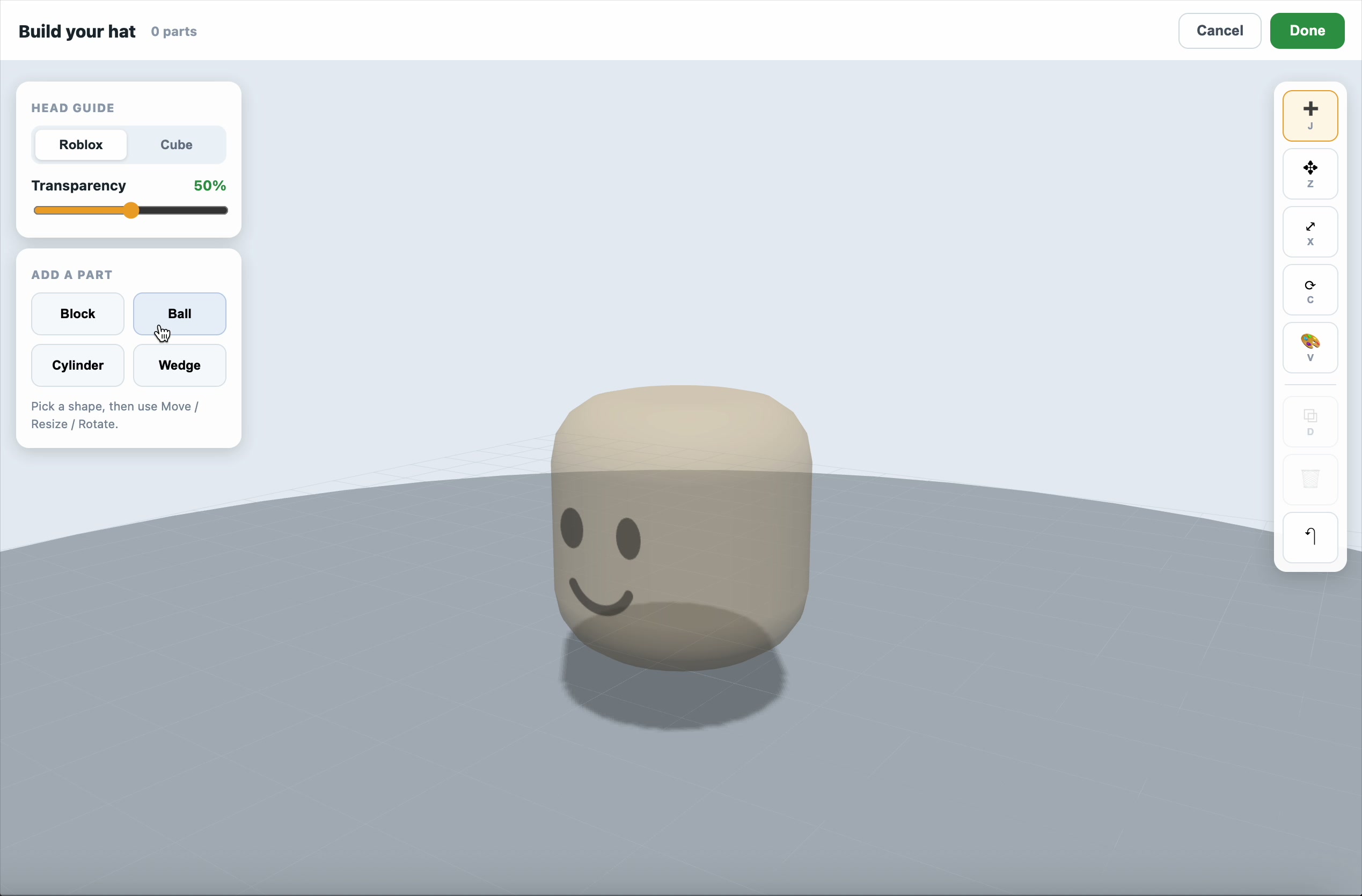
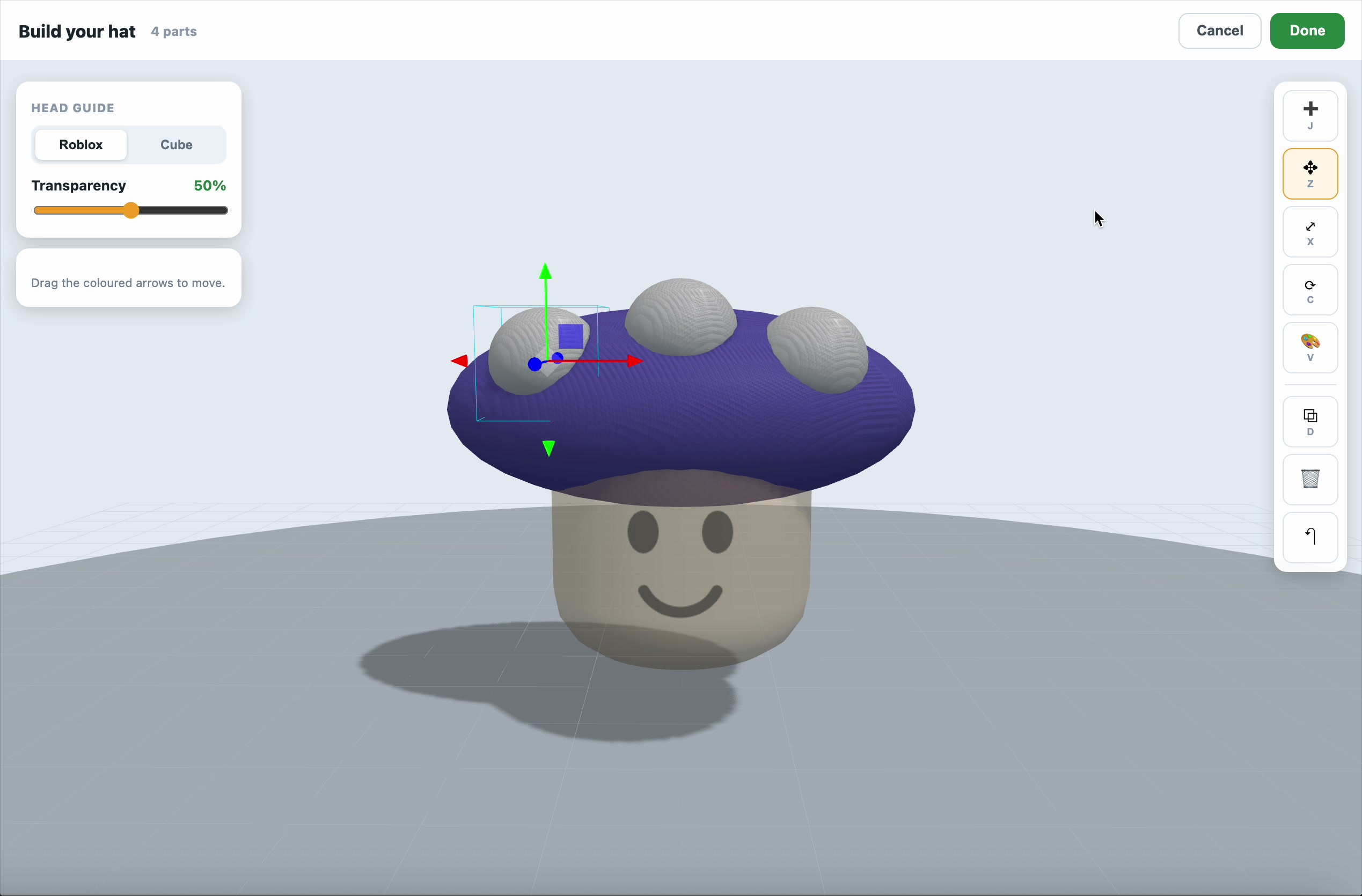
- The builder opens with a guide head so you can build in the right place
5. Add and shape your parts
- Under Add a part, click a shape: Block, Ball, Cylinder or Wedge
- Use the tools on the right to change it:
- Move — drag the coloured arrows to slide the part around
- Resize — drag the arrows to make it bigger or smaller
- Rotate — drag to spin it
- Paint — pick a colour, then tap the part to colour it
- Add as many parts as you like to build up your shape
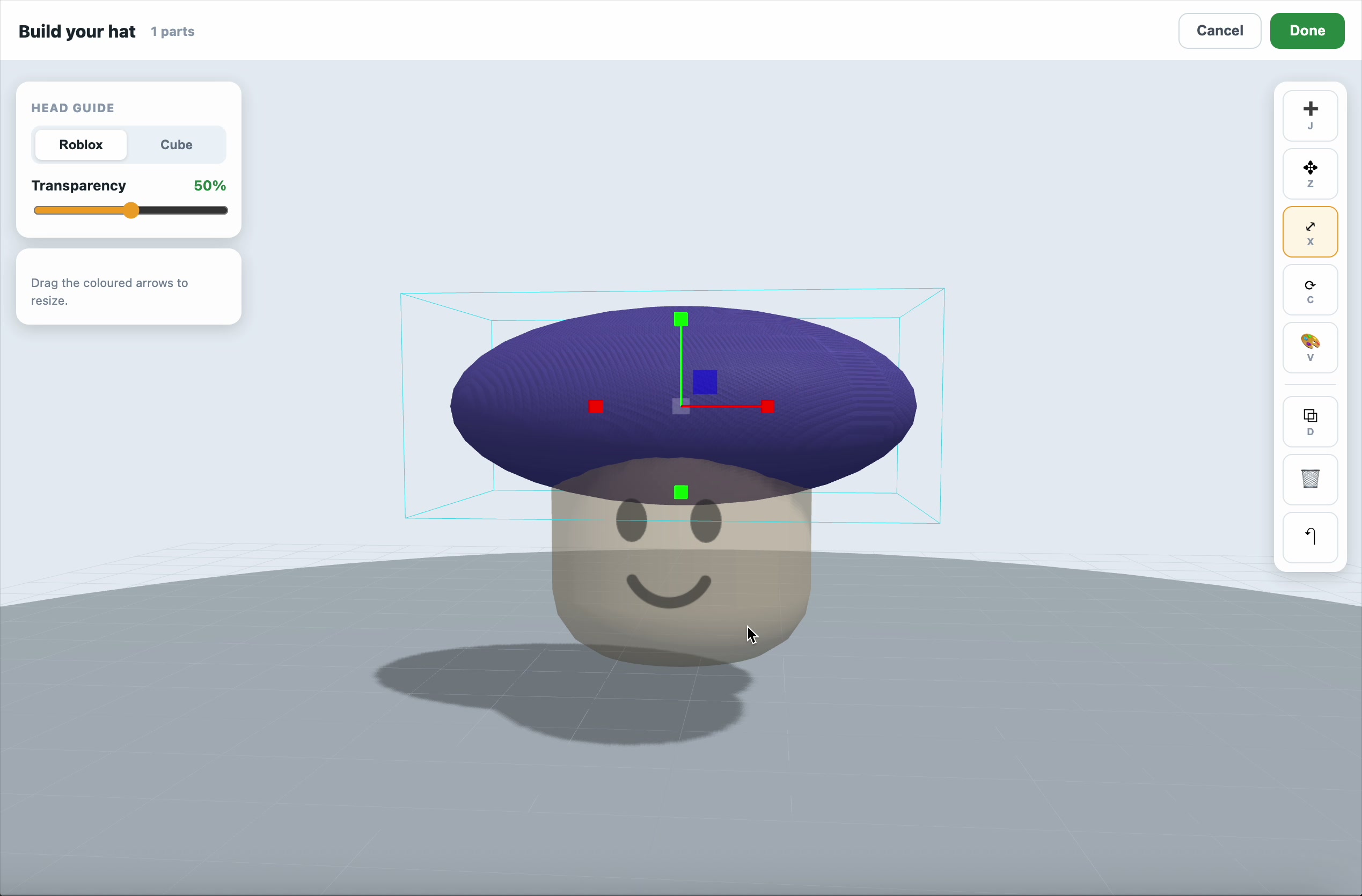
Tip: use Copy to duplicate a part you like, Undo to step back, and the bin to Delete a part. Drag the Transparency slider on the Head guide if it's getting in the way.
6. Save your creation
- When you're happy, click Done
- Give your accessory a name and save it
- It's added to My Items so you can put it on your character any time
7. Export (optional)
Click Export at the top right to download your character as a 3D file you can use in your game.
That's how easy it is to make your own character and accessories with the Buzzy Character Builder. Have fun creating! 🐝